Roles
General
Roles in Webdesk are system-relevant functions that can be assigned to an employee or to a group.
A scope of competence can also be assigned for each role holder (person or group). This scope of competence means that the role holder is responsible ONLY for the persons or groups listed in the scope of competence, or that only these may be viewed.
If a role has no scope of competence, it applies to all employees and is therefore a "central role".
Central roles are held by the same person (or several persons) for all employees of the company, such as the HR department or the management)
Decentralized roles are tasks that are performed only for a specific part of the company, such as department head or supervisor.
The classic use case for this is the "supervisor-employee" relationship in the hierarchical organization of a company. In addition, however, assignments of, for example, clerks can also be defined, who in turn are responsible for specific parts of the company (e.g. HR clerks who answer payroll questions for a specific part of the company).
In Webdesk, there are 2 use cases for a role:
- Assignment of the access permission for roles for program functions (display of certain information lists, certain request forms, ...)
- Fulfills a specific function in the workflow (e.g. the role Supervisor approves a vacation request)
Through the role assignment, the user is also granted a defined access permission to certain areas (e.g. certain forms) and functions, such as information lists. This access permission can be extended or restricted at any time. This is done by determining the competence target (defines who may be viewed): view access to ALL, specific PERSON(s) or specific GROUP(s).
In addition, the role fulfills certain functions in the process flow (requests). Here the role holder can perform defined activities, such as approving, rejecting or reviewing a request.
In contrast to organizational structures (groups, loose groups, cost centers), a role cannot be evaluated. This means that the information functions cannot take a role into account when querying information. To make this possible, the role holders would have to be grouped in a loose group.
Creating a New Role
-
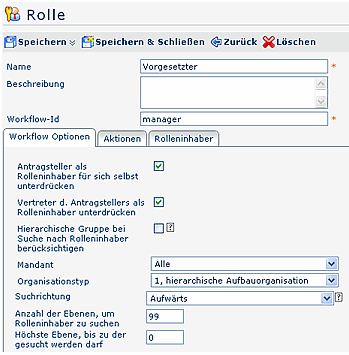
New role: fill in the predefined form
- Name
Name of the new role - Description
Optional description of the new role - Workflow ID
The workflow ID serves as an internal reference for the approval process. This parameter does not have to be filled in, since the workflow ID is by default set to the name of the role.
- Name
-
"Save & Close" to return to the overview of all roles, or "Save" if the form is to be edited further.
-
The operation can be canceled at any time by clicking the "Delete" or "Back" button.
Attention: no punctuation marks (hyphen, comma, etc.) may be used in either the role name or the workflow ID. If a separator is needed in the name or the workflow ID, only an underscore (_) should be used. (Example: VAZ_Responsible)
Workflow Options Tab
-
Suppress requester as role holder for themselves
Relevant only if the requester is also the role holder (e.g. supervisor). Activating the parameter sends the request to the substitute role holder or to the next higher employee in the hierarchy. This prevents a supervisor from automatically approving their own requests. -
Suppress requester's substitute as role holder
The substitute is skipped when searching for role holders. Be careful with departments of only 2 employees (supervisor, substitute > the search is unsuccessful in this case) -
Consider hierarchical group when searching for role holder
If this flag is set, the hierarchical group is taken into account when searching for a role holder in the workflow, even if a directly assigned role holder exists for the current requester!
Example: Mr. Weiss, Mr. Wagner and Ms. Müller are role holders of the role 'Supervisor' for group G01. If Mr. Maier is directly assigned as supervisor for Ms. Müller, the role Supervisor in the workflow would be filled only with Mr. Maier in the case of Ms. Müller as the requester. If, however, this flag is set, possible role holders are also searched for in her hierarchical group (=G01) (in this case Mr. Weiss, Mr. Wagner and Ms. Müller). -
Client
Selection of the client for which the role is to apply -
Organization type
Selection of the organization type for the new role (for a detailed description see the item "Creating a New Organizational Structure"). If Loose groups is selected, the role is not populated hierarchically, since there is no link between loose groups. The organization type is used when searching for a role holder for a particular role for a particular competence target (e.g. the requester) in order to find suitable role holders in linked groups of the competence target with the same organization type. -
Search direction
Determines the direction when searching for defined role holders:- "none" - The search for role holders takes place only within the own group or department.
- "upward" - The search for role holders takes place in the superordinate departments or groups (useful for the role Supervisor)
- "downward" - The search for role holders takes place in the departments or groups below (useful only for the process Sick Leave Notification by Colleague)
Attention: Parameter Suppress requester as role holder for themselves > if the levels in which a role holder may be searched for are restricted, the following situation arises: if the requester (who is also the role holder) is at the highest level at which searching is allowed, they become their own supervisor, even though the parameter "Suppress requester as role holder for themselves" is activated. Suggested solution: assign a supervisor directly to that person: menu item Persons > select the person who is to take the role Supervisor > assign role > select competence target Person > select the person in question.
- Number of levels to search for role holder
This parameter appears only if upward/downward was selected for the search direction. Here you can enter the number of levels within which a role holder is to be searched for - e.g. 2 > the search for a role holder is limited to the next 2 levels (upward or downward, depending on the search direction setting). - Highest level up to which searching is allowed
This parameter appears only if upward/downward was selected for the search direction. Specifying the highest level makes it possible to restrict the search upward. The search for a role holder does not go beyond this level.
Actions Tab
The Actions tab lets you assign the role holders permission for various actions and specify the validity period as well as the view permission.
In the overview of the already assigned actions, you can search for a specific action using the search fields:
Name of the action, Negative (setting the parameter to YES excludes permissions for actions), validity period or view permission.
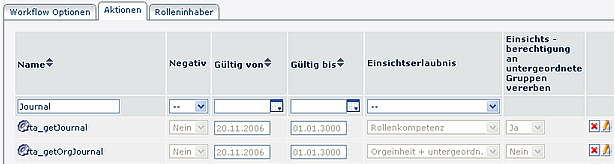
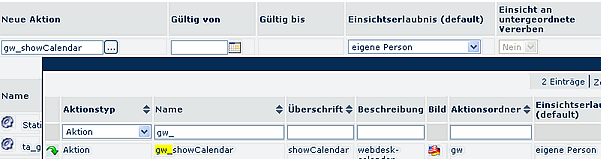
To assign a new action permission, click the button "New action permission":
-
New action
Select the desired action from the context menu (you can additionally search by action type or action name here) -
Valid from - to
Determines the period for which the action permission is to apply (if this parameter is not filled in, the permission applies from today's date) -
View permission (default)
The following parameters are available:- Own person
View permission for the own person only - Org unit
View permission for the own organizational unit (department) - Org unit + subordinate
View permission for the own organizational unit and all units subordinate to it - Role competence
If this parameter is selected, you can additionally determine whether the view permission is also inherited by subordinate groups (if Yes > the subordinate groups can also be viewed, if No < only the defined groups can be viewed). - Own client
View permission for all persons of the own client - All clients
View permission for all persons of all clients
- Own person
-
Inherit view access to subordinates
If this parameter is set to Yes, then
Role Holders Tab
When selecting the role holders, specific persons or groups are stored for a role. As with the assigned actions, you can search here for defined role holders. Possible search by: competence target or role holder:
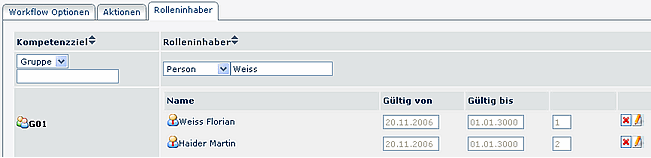
New assignment
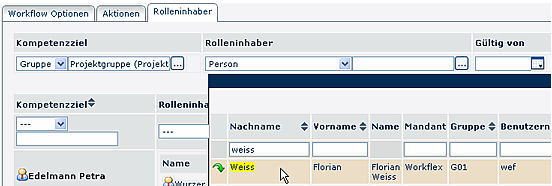
After clicking the button "New assignment", you determine a competence target, select the role holder, specify the view permission and the validity period (temporary role assignment is possible).
-
Competence target
The competence target defines who may be viewed:- ALL (the entire company),
- a specific PERSON or
- a specific GROUP
-
Role holder
Selection of a person, group or dynamic role (useful only for the role Colleague)- if Person is selected > a context menu with all possible persons is expanded > select a specific person
- if Group is selected > a context menu with all possible groups is expanded > select a specific group
-
Valid from - to
Specify the validity period -
Ranking
1 = Supervisor, 2 = Substitute (3, 4: if several persons are defined as substitutes, the system determines who receives a request for processing. The substitute activation is also important in this context). To change the ranking, click the edit icon (Edit)
Searching for a Role
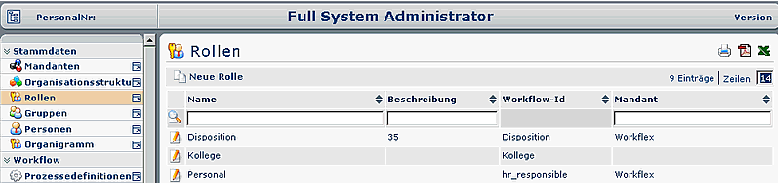
To find a specific role, you have the following options: search by
- Name, description, client
- To do so, fill in the desired field, click Search (magnifier icon) and you get the desired role, or a selection of similar roles.
- Clicking the edit icon takes you to the detail view of the desired role.
Editing a Role
An existing role can be edited if needed by clicking the edit icon. This takes you to the detail view, where you can edit the role as desired.
The following changes can be made to an existing role:
- Name
Change the role name - Description
Change or add a role description - Change of the workflow ID
By default, the workflow ID should not be changed (only after consultation with Workflow EDV GmbH) - Further changes
Changes in the Workflow Options, Actions and Role Holders tabs are also possible. A detailed description of these tabs can be found under the item Creating a New Role.
Deleting a Role
- To delete an existing role, select it from the overview
- Click the button bar item "Delete"
- As a safety check, a popup appears asking whether this role should really be deleted.
- Clicking the OK button deletes the role and it no longer appears in the roles overview.
Dynamic Roles
In our experience, dynamic role population is used only for the role "Colleague". This saves you from selecting the individual group colleagues, since all colleagues from a defined group are automatically populated dynamically into this role.

- Competence target > Group
- Select the desired group
- Role holder > Dynamic role assignment
- Select the dynamic role holder
- Specify the validity period
- Valid from - to
Displaying Role Holders in the Organizational Chart
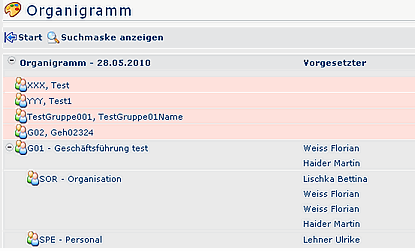
When searching for or displaying role holders, the organizational chart can also be used. This gives you an overview of all role holders of a particular role (or several roles).
- Menu item Organizational chart
- Select the desired role >
- Start
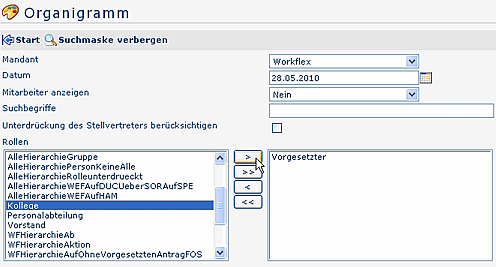
The organizational chart is built taking the searched role(s) into account. For each organizational unit (group/department), the corresponding supervisor is displayed: