Action Statistics evaluation
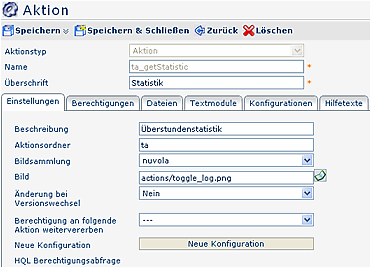
A detailed description of the individual fields and tabs can be found in the menu item "Actions".
Statistics evaluation configurations
Any number of configurations can be derived from each configurable action (i.e., action type = "Action"). In a specific configuration you can determine which fields are shown to the user and how many. This makes it possible to adapt forms to the needs and wishes of individual users or user groups.
Each column in the configuration screen corresponds to a row in the statistics evaluation. The columns / rows can be configured as desired.
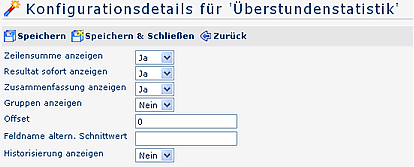
- Show row total
If the parameter is set to Yes, the row total is displayed.
If the parameter is set to No, the row total is hidden. - Show result immediately
If the parameter is set to Yes, the checkbox "Show result immediately" is enabled in this list. If you then make a selection and enable this checkbox, the next time this list is opened, this selection is applied immediately, without first displaying the selection organizational chart. - Show summary
If the parameter is set to Yes, a summary is displayed at the bottom of the statistics screen, showing, for example, the number of employees and the number and names of the selected groups. - Show groups
If set to Yes, the queried groups are displayed in the summary. If set to No, only the number of queried users is shown. - Offset
This parameter controls the "shift" of the list in months. For example: if Offset = 2 is set, a query of the current calendar year starts only with March. With -2, it starts with November. - Field name alt. average value
E.g., stwert8 - this value must be stored in a stwert field in time recording (if6020). The entry date is also taken into account: if, for example, the employee joined in March, the average calculation only starts from that point in time. - Show history
If this parameter is set to YES, historicized records are also displayed
Columns to display

-
Attribute
Any account values can be configured in this row: -
Heading
Enter the heading for the selected account value that should appear in the output screen -
Account type
- absolute:
This setting causes the absolute amount of the monthly account to always be displayed. The data is shown as in the corresponding accounts of the 6020. - Increase
This can be used to display a relative increase of an account. This means that only the difference between the account and the previous month's account is shown, not the absolute account amount. This setting is not suitable for accounts that are reset to 0 at the beginning of the year. - Increase year
Calculation of an annual relative increase. As with the Increase setting, the difference between the account and the previous month's amount of the account is shown, but with the difference that at the beginning of the accounting year the absolute amount of the account is displayed. This setting is therefore also suitable for accounts that are reset to zero at the beginning of the year.
- absolute:
-
Average
If the parameter is set to Yes, the running annual average is calculated and displayed.
If the parameter is set to No, the average is not displayed. -
Convert
Select either standard minutes or industrial minutes -
Format pattern
Determines the number of decimal places displayed, e.g., 0.00 or 0.000; next to the "Format pattern" input field there is a help text in the form of a question mark -
Decimal separator
Specifies the desired decimal separator (./ ,/ :/ ;) -
Add
Click the "Add" button to add any number of rows to the statistics evaluation. -
Delete
Select the checkbox and then click the Delete button to delete the row
Additional data
With the additional data, person-related data can be displayed next to the name above the displayed accounts.
The following options have been implemented:
- Person fields T&A
- Selected person fields can be marked invisible > select "Hide"
- javaScript

New statistics evaluation configuration
To create a new configuration for an action, select the relevant action and click the "New configuration" button.
Fill in the predefined fields / tabs as described above.
More detailed information can be found in the chapter General information on configurations.