Action Master data / Accounts
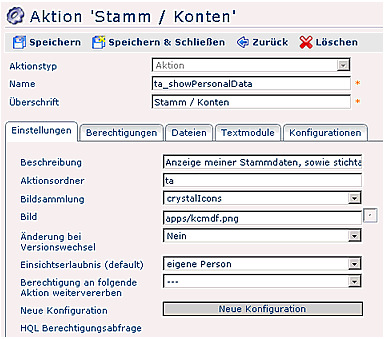
A detailed description of the individual fields and tabs can be found in the menu item "Actions".
Configuration of the action Master data / Accounts
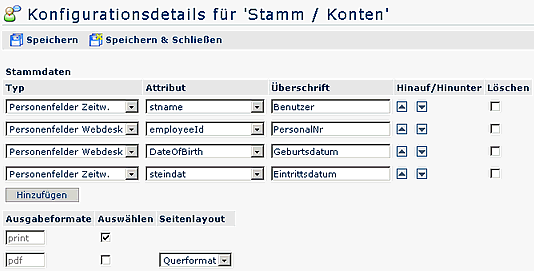
Master data
-
Type
This parameter determines which value is displayed in the column:- Person fields T&A - fields from the person master record in Time & Attendance
- Person fields Webdesk - fields from the person master record in Webdesk
- Empty row - If this parameter is selected, an empty row appears in the output screen
-
Attribute
These parameters depend on the selected type.- if the type "Person field T&A" is selected, person fields from Time & Attendance are displayed here, such as employee number, first name, last name, department, various account values from Time & Attendance, etc. The following attributes are available for selection:
Name Description employeeID Employee no. firstName First name lastName Last name orgUnit Department region Region stabt Department stakost Cost center
-
- Person fields from Time & Attendance can be selected here, such as employee number, first name, last name, department, various account values from Time & Attendance, etc.
- if the type "Person fields Webdesk" is selected, person fields from Webdesk are displayed, such as e-mail address, employee number, short name, user name, etc.
- Heading
Heading that should appear in the output screen - Up / Down
Move the order within the rows up or down - Delete
The row is deleted - Add
Add a new column/row - Output formats
Select the output formats Print, PDF, XLS - Page layout: Landscape, Portrait
Accounts
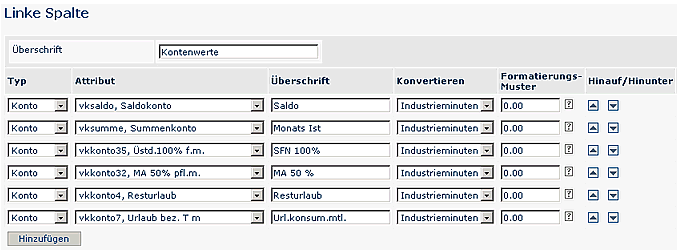
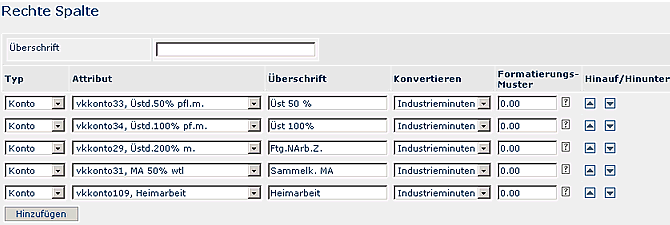
The accounts can be displayed in 2 columns - left and right column. A heading can be entered for each column.
-
Heading
Enter the heading that should appear in the Master data / Accounts screen -
Type:
- Account
if this parameter is selected as the type, various account values from Time & Attendance are displayed (billable accounts, daily values, ...) - Empty row
If this parameter is selected, an empty row appears in the output screen.
- Account
-
Attribute
This parameter depends on the selected type. If the type Account is selected, you can select various account values in the Attribute column. If "Empty row" is selected in the Type column, no attributes are available for selection. -
Heading
Heading that should appear in the row -
Convert
If an account value is selected as the type, the time can be displayed in standard minutes or industrial minutes -
Format pattern
Format characters: '0' and '#';
0: Empty decimal places are replaced by a 0. E.g.: 9.71 + 00.000 > 09,710; 9.71 + 0.0 > 9,7;
#: Empty decimal places are not replaced. E.g.: 9.71 + ##.### > 9,71; 9.71 + #.# > 9,7 -
Decimal separator
Which separator should be displayed (: . , ;) -
Up / Down
Order within the rows -
Delete
The row is deleted -
Add
New rows are added.
New configuration of the action Master data / Accounts
Each action can have any number of configurations. A configuration determines the appearance of the output screen.
To create a new configuration for an action, select the relevant action and click the "New configuration" button.
Fill in the predefined fields / tabs as described above.