Action Calendar overview
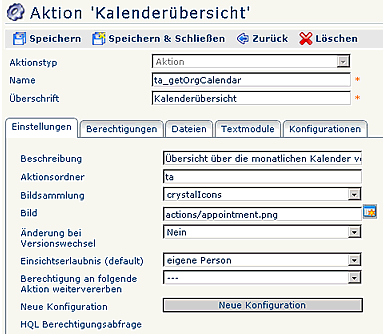
A detailed description of the individual fields and tabs can be found in the menu item "Actions".
Calendar overview configurations
An existing configuration can be edited at any time by clicking the "Edit configuration details" button.
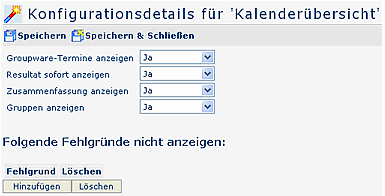
- Show groupware appointments
If the parameter is set to Yes, the appointments from the Calendaring module are displayed. - Show result immediately
If the parameter is set to Yes, the checkbox "Show result immediately" is enabled in this list. If you then make a selection and enable this checkbox, the next time this list is opened, this selection is applied immediately, without first displaying the selection organizational chart. - Show summary
If the parameter is set to Yes, a summary is displayed at the bottom of the calendar overview screen, showing, for example, the number of employees and the number and names of the selected groups. - Show groups
If set to Yes, the queried groups are displayed in the summary. If set to No, only the number of queried users is shown.
Do not show the following absence reasons
You can hide certain absence reasons in the calendar. Add an absence reason to the list and save > Save. The absence reason abbreviation is then not shown in the calendar view, but the details can still be retrieved on mouse-over.
For more information on absence reasons, the context menu, possible restrictions of the selection tree, and limiting queries by date, see the chapter "General information on configurations".
New calendar overview configuration
Each action can have any number of configurations. The different configurations determine the appearance of the output screens (e.g., different views for different groups).
To create a new configuration for an action, select the relevant action and click the "New configuration" button.
Fill in the predefined fields / tabs as described above.