New Features in 4.59
Periodic Approval of Journal Entries
With this version we are introducing the periodic approval of journal entries. This function enables companies to review and approve their employees' time tracking journals in a structured and regular manner.
Configuration
This function can be enabled on request and configured accordingly. The following settings can be adjusted:
- The period for which employees can submit entries for approval retroactively.
- The groups for which the approval is enabled.
- The sequence of approval steps, e.g. to involve additional persons in the approval workflow or to inform them about the approval.
In addition, it can be defined for which groups the monthly approval is enabled.
Automatic Reminder
An automated process notifies employees if the previous month has not yet been submitted for approval. The period within which employees must complete the approval before they receive a reminder can be configured individually per client. However, this setting applies uniformly to the entire client.
User View
Once the function is enabled, an additional field appears in the employees' journal that shows the current status of the month. Possible statuses are:
- The month has not yet been sent for approval.
- The month has already been submitted for approval.
- The month has been approved.
- The month cannot be sent for approval.
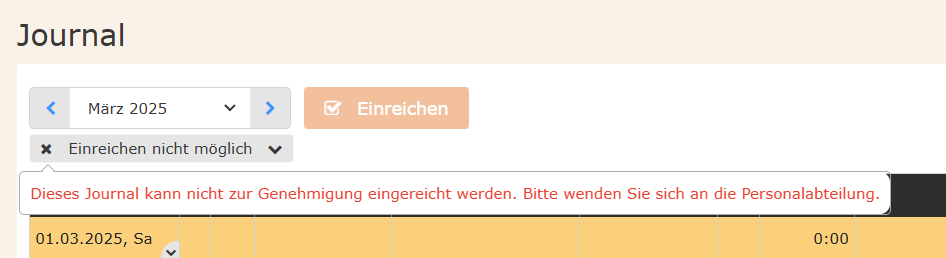
If a month cannot be sent for approval and an error message appears (see next screenshot), the journal of the previous month must first be approved before the approval period. This is because journals always check whether the previous month has already been approved. This check also applies to the first month after the approval function is activated.
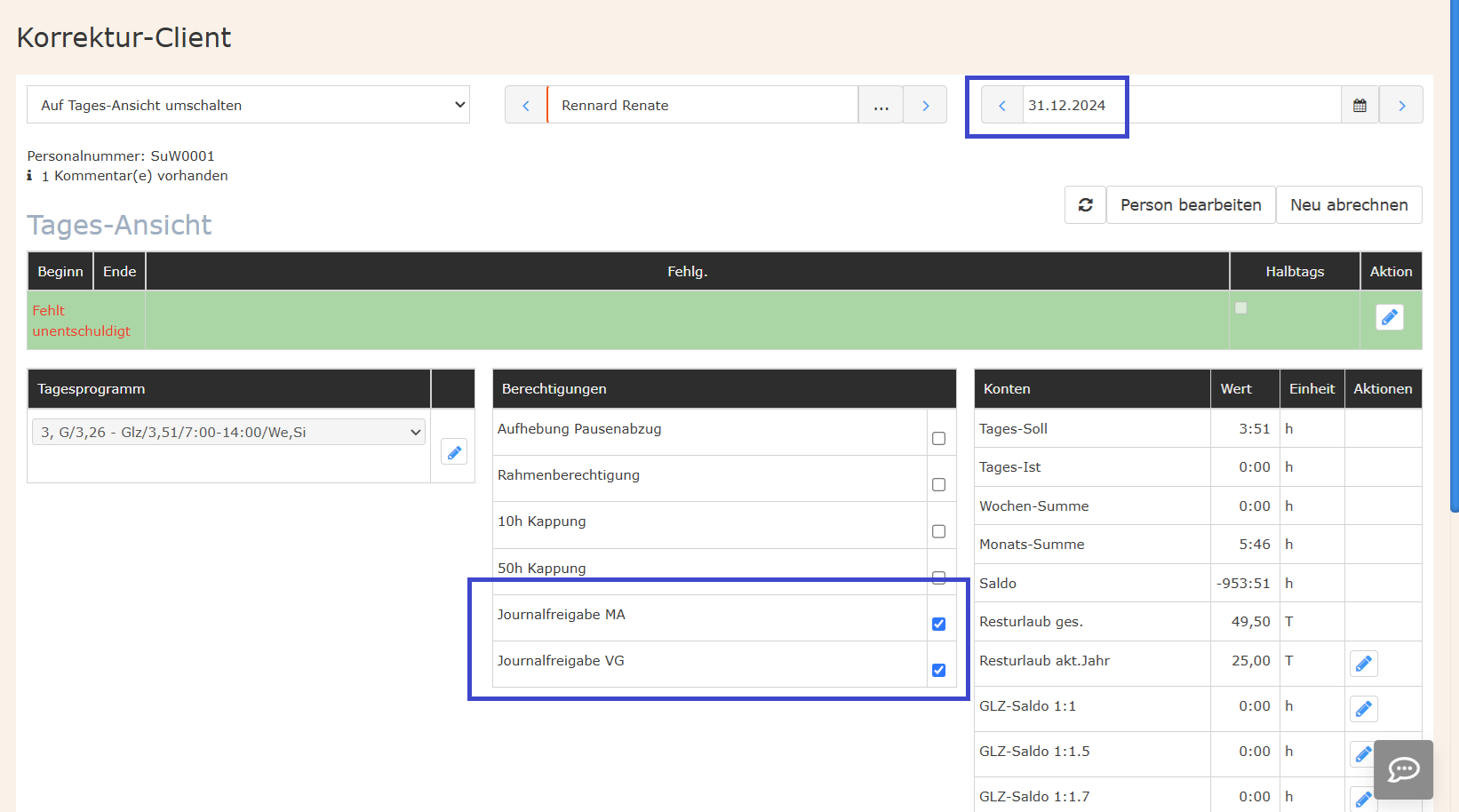
To resolve this, the missing permission must be entered in the correction client. To do so, the corresponding permissions must be enabled when setting up the function.
The permission must be set on the last day of the month in each case. Example: The period is set to two months, and it is currently March. This means that January and February can be approved. For this to work, the permission must be set manually on December 31.
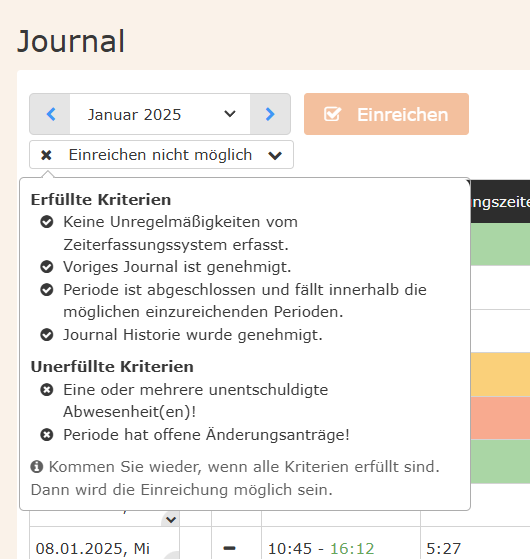
Once all permissions and settings are correct, you will see the status for January and can enter missing data or submit the journal for approval.
Prerequisites for submitting the journal for approval:
-
No unexcused absences: Every day must contain either bookings or full-day absences.
-
No irregularities in the time tracking system: Errors such as "Unexcused absence", open bookings, or bookings clocked out by the system must be resolved.
-
No open change requests: Time corrections, absence requests, and permission requests must be completed – regardless of whether they were approved, rejected, or canceled.
-
Previous journal is approved: The previous month must already be approved.
-
Period is closed and lies within the permitted periods:
- The journal can only be approved once the month has ended (e.g. February can only be approved in March).
- Months that are too far in the past can no longer be submitted for approval.
-
Journal history has been approved: All previous months within the relevant period must already be approved.
Example: If retroactive approval is allowed for two months, January must be approved before February can be submitted.
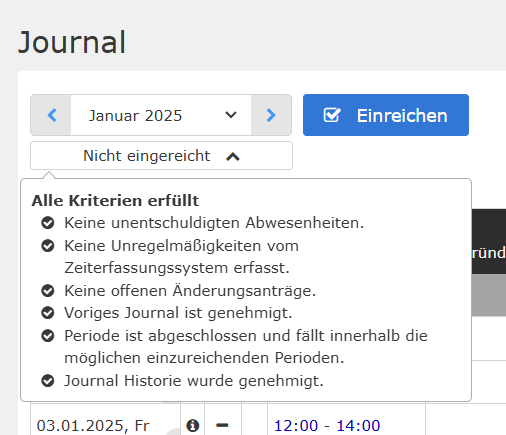
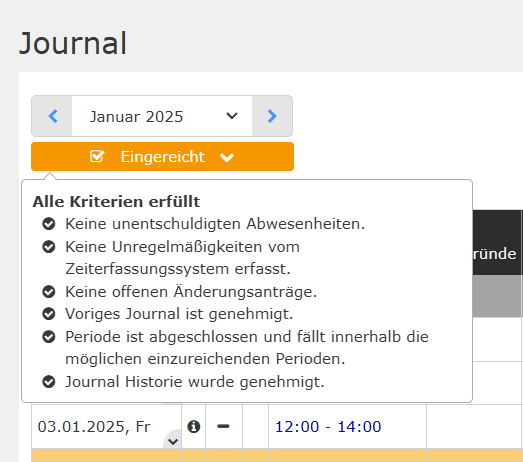
By clicking the "badge", the status of all prerequisites can be viewed.
Once all conditions are met, the blue "Submit" button is displayed, and the journal can be sent for approval.
After clicking "Submit", a small window with additional information appears, in which sending the journal must be confirmed again.
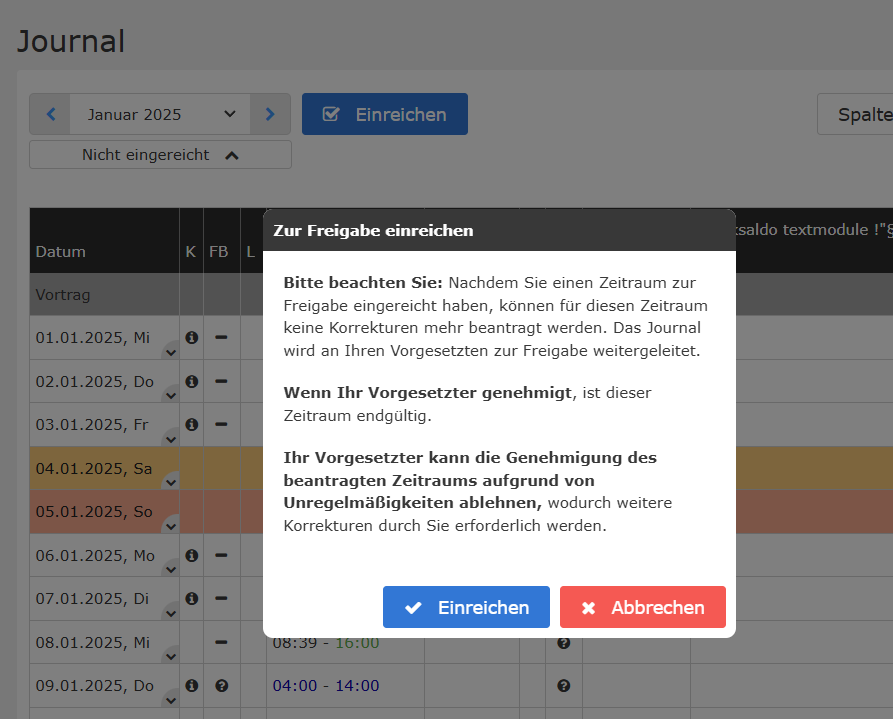
Once the journal has been submitted, the status of the badge changes to "Submitted".
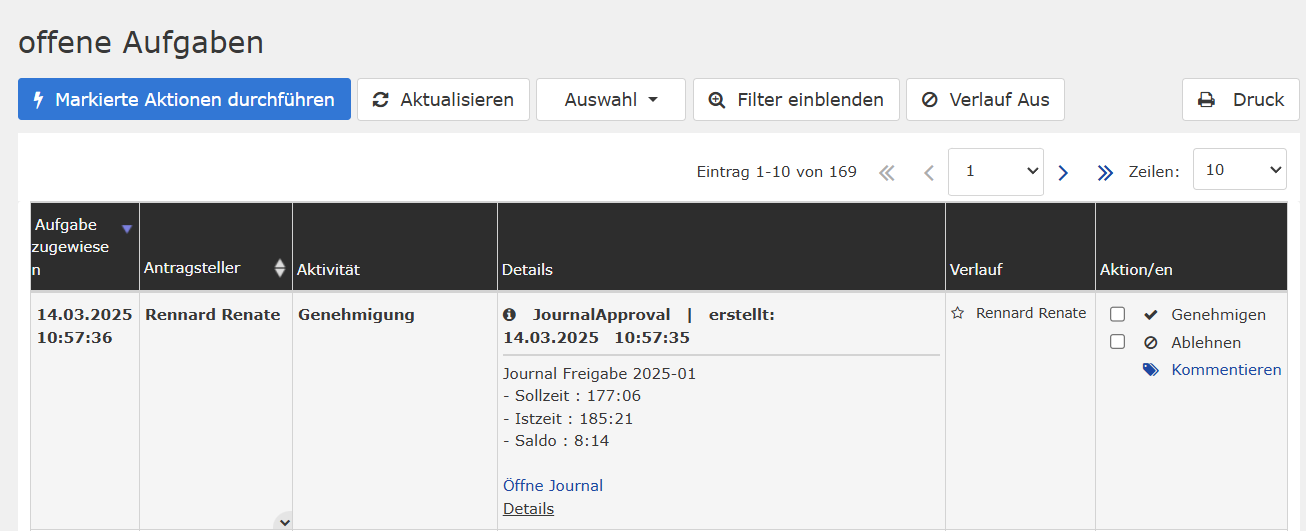
The supervisor receives a task in which the month can be approved or rejected. In case of a rejection, the supervisor can add a comment. The employee can then add the missing data and submit the month for approval again.
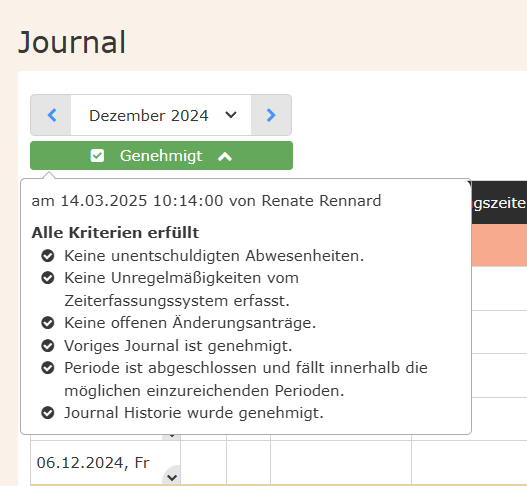
Once the month has been approved, the status of the badge changes to "Approved" and the next month can be submitted for approval.
After a month has been submitted, no further changes can be made, for example through requests.
Time Tracking
The absence reason "Absent" is disabled in the booking form if you are not currently clocked in.
Dashboard
The dashboard action in Webdesk (not in HR Expert) is also made available to users with the license ta-if6020-info, even if no full booking license is present. As a result, functions may be visible that cannot be used.
Import Connectors
Import connectors can now be configured so that data can be imported from files on S/FTP servers.
Per Diem Definition
The definition of per diem definitions was extended to support additional time categories for the calculation of German foreign business trips. The tiers "more than 11 hours" and "between 8 and 11 hours" have been newly added.
Multiple VAT Rates in Receipts
On request, the system can be configured so that multiple VAT rates can be entered simultaneously in receipts.
Improvements in the HR Messaging System
- Administrators can now see which recipients have read or rejected a message.
- For a better overview, the status display of messages was revised: "Read on" was renamed to "Confirmed/Rejected on".
- In the re-entry form, the names of the additional required groups are now displayed as placeholders.
Optimizations in the User Interface
-
The group list now contains a new column "Group Type", which provides a better overview of the type of group (e.g. organizational groups or loose groups).
-
Minor improvements to the user interface increase clarity and readability. These include a slightly adjusted color palette and the removal of unnecessary borders.
-
The mobile view was also optimized: Layout, spacing, and colors were adjusted to improve readability and user guidance.
- Absence reasons are now displayed in colored badges.
- The menu cards in dynamic mode were revised for a more consistent presentation.
Performance Optimizations
- The calendar now loads faster.
- The loading time of person information was optimized to improve performance when opening a person profile.