Webdesk EWP Home Page
After logging in to Webdesk EWP, you arrive at the home page.
Here you will find a personalized page with your picture and personal notes. Messages from the system or news are also displayed directly on the home page. Via the menu tree on the left side of the screen, all functions of your personal Webdesk can be accessed. By clicking the "Home" button in the menu tree, you can return to this page at any time.
The display may differ slightly depending on the setting (skin) and version.
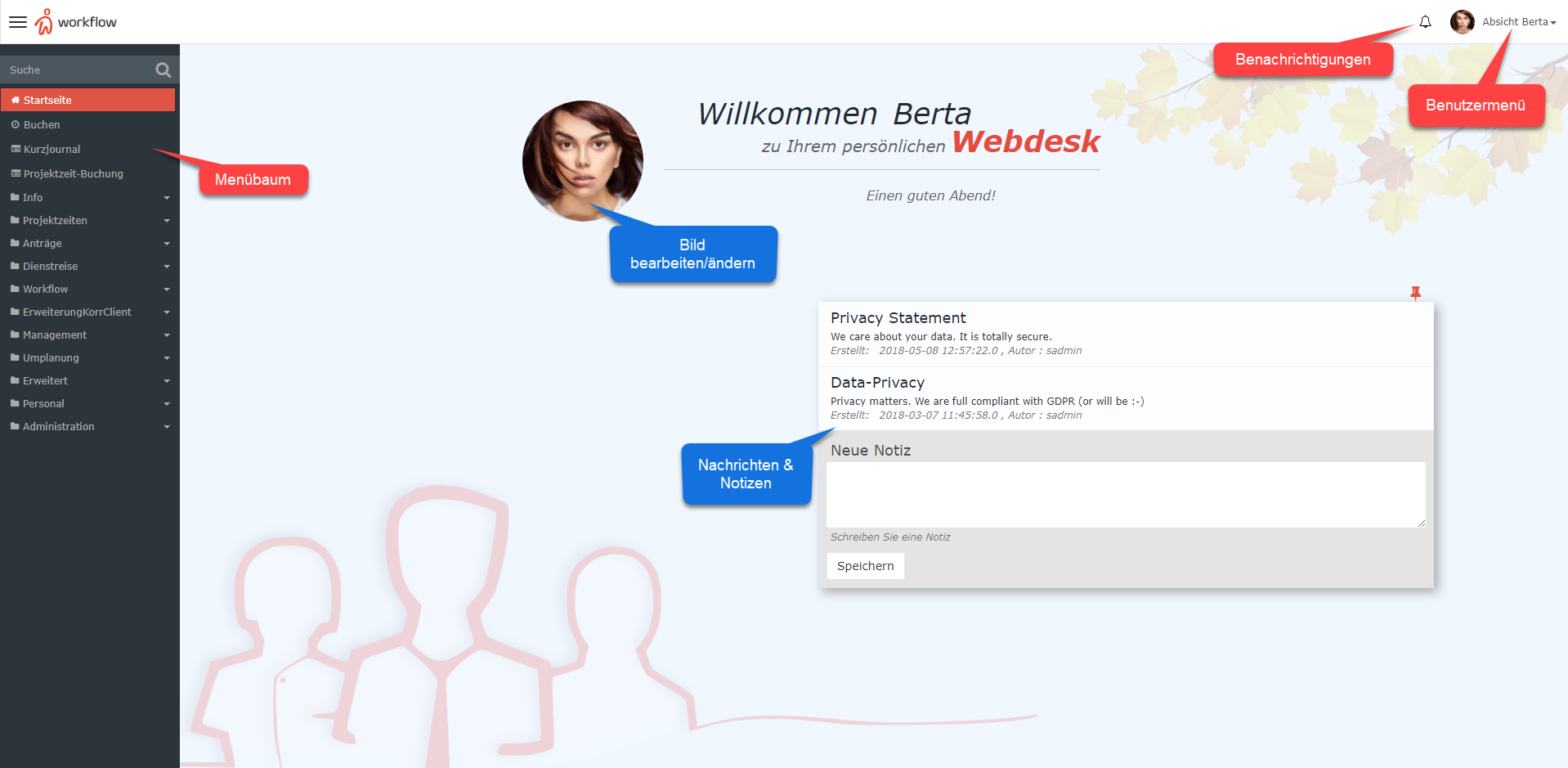
Notifications
The Notifications field displays new tasks that still need to be completed. Clicking the notification icon takes you to the open tasks page.
User Menu
The user menu is located on the home page in the upper right corner. Clicking the user name opens the following menu items:
- Settings: Select language, time zone, and Webdesk appearance, change password, edit account data, and other quick settings within the scope of the respective user's permissions. More on this under: User Settings
- Switch user (administrators only!): Switch to the Webdesk view of any user
- About Webdesk: View version and license information
- Quick introduction: Introduction to the responsive design and option for user feedback
- Create Jira ticket: If problems with Webdesk EWP arise, a support ticket for the developers can be created directly here
- Log out: Log out of Webdesk EWP
Change Picture
By clicking the picture directly on the home page, you can change it or upload a new picture.
Notes
Here you can make your own notes and pin them directly to the home page.