Creating Databases with SQL Server Management Studio
General
This article describes how to use the Microsoft SQL Management Console to create the databases required for Webdesk EWP
- webdesk
- shark
and to define a technical user for access from Webdesk.
Steps in Detail
Open the SQL Management Console
Connect to SQLEXPRESS using Windows authentication.
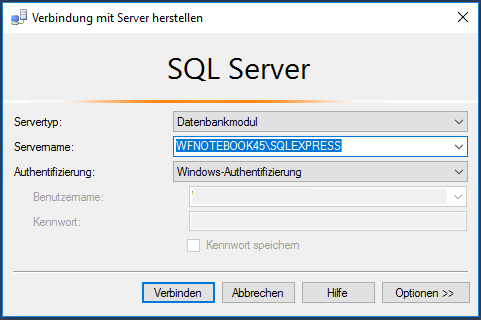
In the Object Explorer, expand the server node
-
Right-click Databases - create a new database
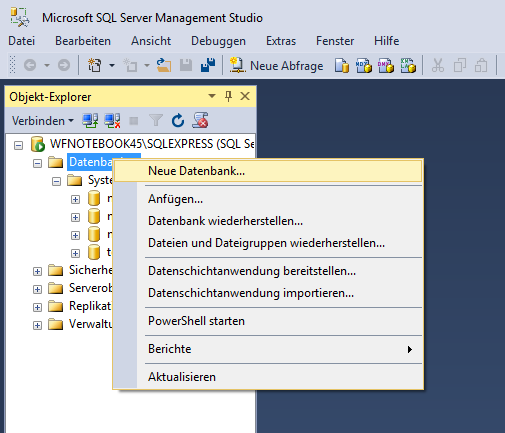
General tab: Name: webdesk -
Security - right-click Logins - New Login

-
General:
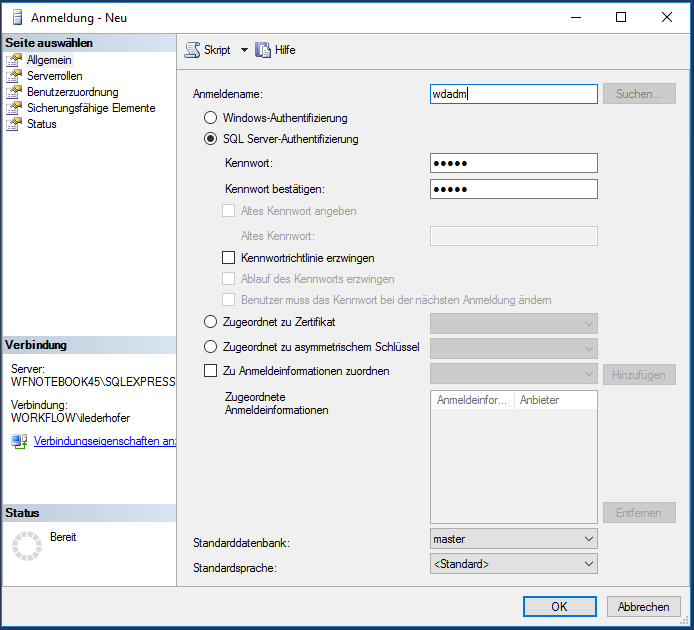
- Name: wdadm
- Select SQL Server authentication
- Enter the password twice
- Disable Enforce password policy
-
Check the server roles:
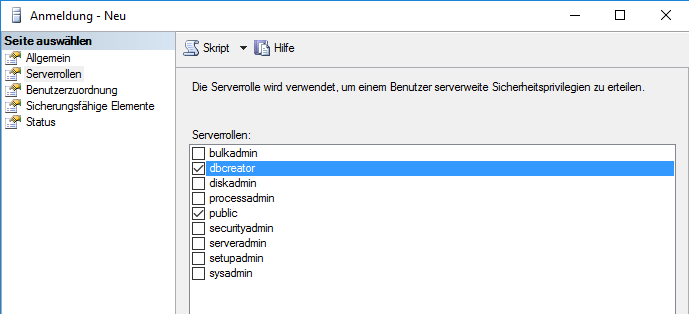
- dbcreator
- public
-
-
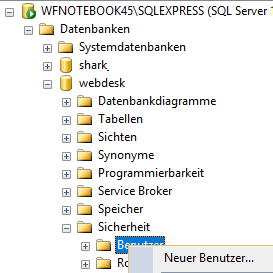
Databases - webdesk - Security - Users:
-
Right-click Users --> New User
-
General:
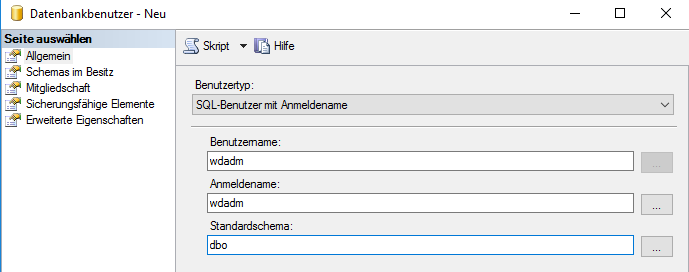
- User type: SQL user with login
- User name: wdadm
- Login name: wdadm
- Default schema: dbo
-
Check Owned Schemas
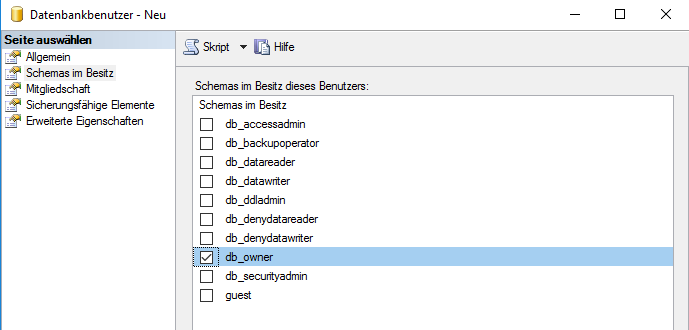
- db_owner
-
Check Membership
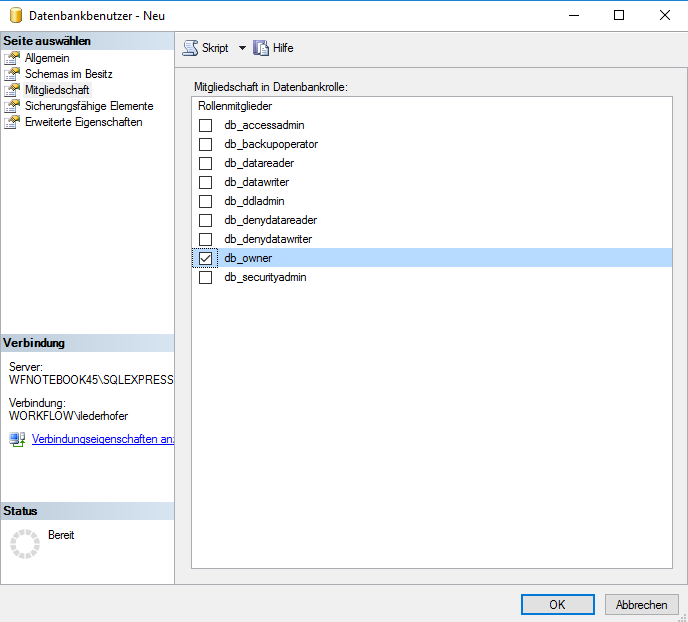
- db_owner
-
-
Create the database
General tab: Name: shark -
Databases, shark, Security, Users:
-
Right-click, New User
-
General:
- User type: SQL user with login
- User name: wdadm
- Login name: wdadm
- Default schema: dbo
-
Check Owned Schemas
- db_owner
-
Check Membership
- db_owner
-
-
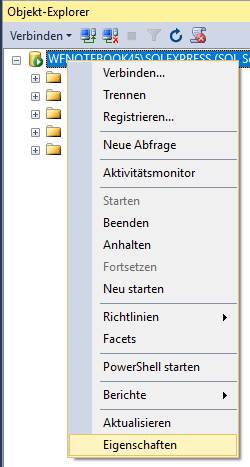
Right-click the SQL Server
-
Open Properties:
- Security tab
under Server authentication, select the option "SQL Server and Windows Authentication mode", then OK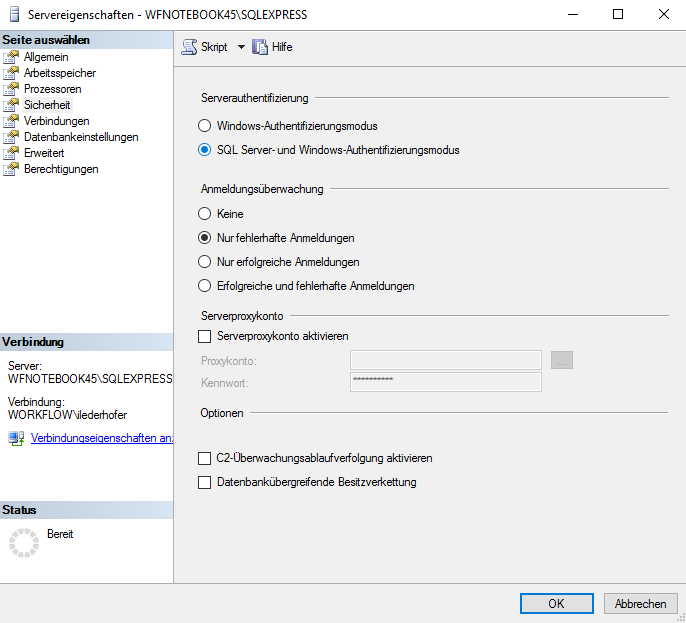
- Security tab
-
Restart the server service
IMPORTANT! The user must be the owner of the databases in order to be allowed to read, write, and delete data; otherwise Webdesk cannot function properly.