Organization
The Organization area can be opened at any time via Webdesk.
Clicking "Organization" in the menu bar opens the dropdown menu.
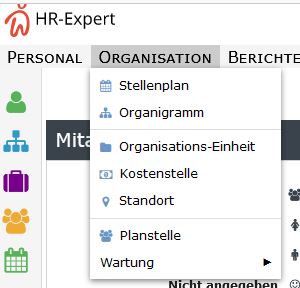
Below you will first find an explanation of the terms used:
Staffing plan
The staffing plan displays the job structure of the selected department as of the reference date. The plus symbol expands all subfolders, and the minus symbol collapses them again.
Organization Chart
The organization chart displays the company structure with all organizational units and groups and the assigned employees.
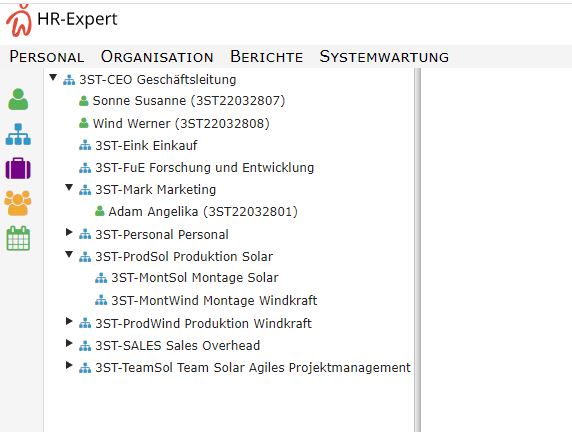
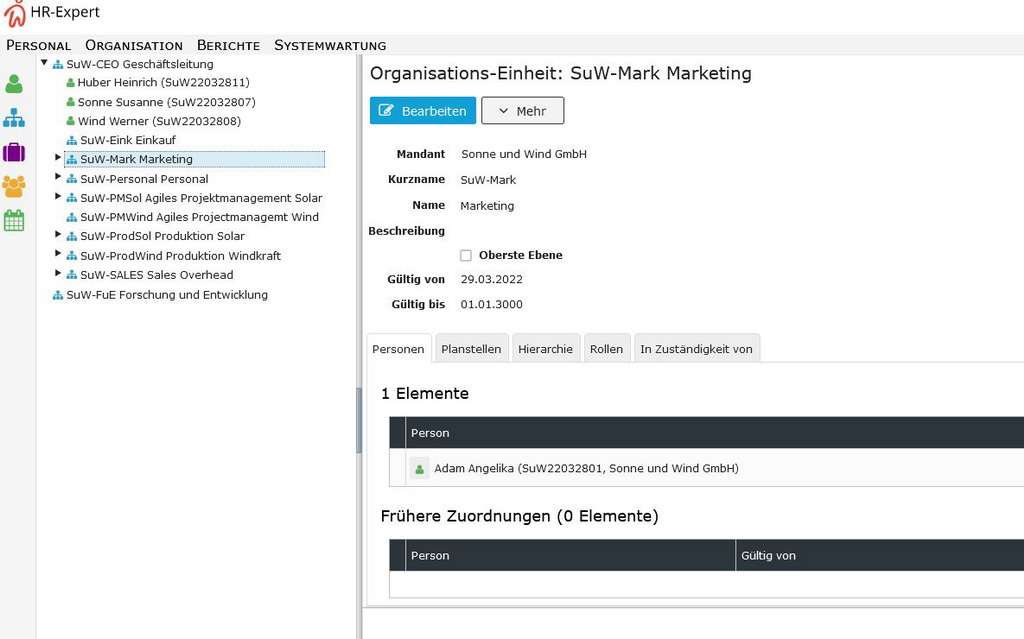
Clicking an organizational unit or an employee displays it in the field to the right of the organization chart for viewing and editing.
Organizational Unit
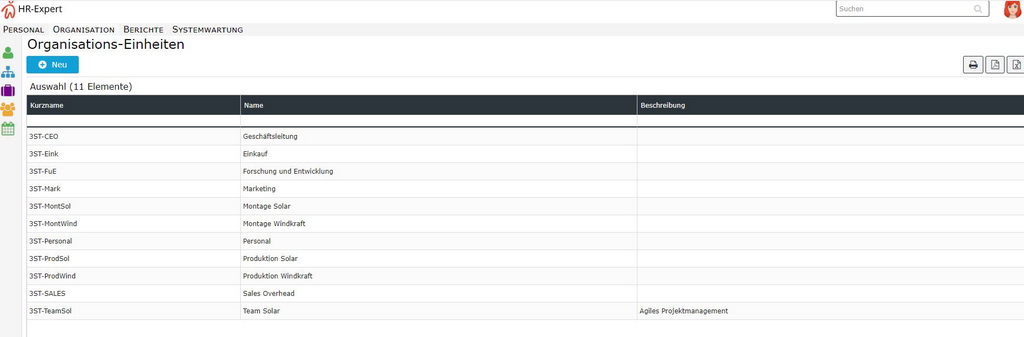
The list of all created organizational units is displayed here, and clicking "New" lets you create new organizational units.
An overview of the input options in this area can be found under Organizational Unit Field Index
Deleting an Organizational Unit
Did you create an organizational unit that is not needed after all?
Click the organizational unit to be deleted in the list. Next to the "Edit" button you will find the "More" button. Clicking it opens a Delete button. Clicking it deletes the organizational unit.
If the deletion takes place on the day this organizational unit was created, the system assumes a mistake and carries out the deletion without asking for confirmation.
Attention! This deletion of an organizational unit without roles, personnel, etc. on the day of creation is irreversible!
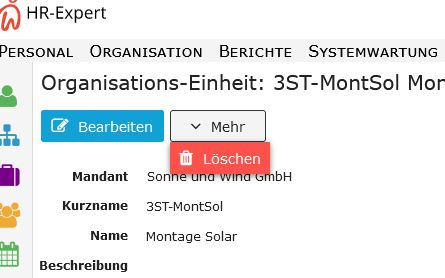
If the deletion takes place from the next day onward, the data can be restored. In such a case, please contact our administrators and experts at Workflow!
Cost Center
Cost centers are used, among other things, to assign the costs of employee further education. A prerequisite for using cost centers is a corresponding organizational structure in your company.
The list of all created cost centers is displayed here, and clicking "New" lets you create new cost centers.
An overview of the available fields can be found under Cost Center Field Index
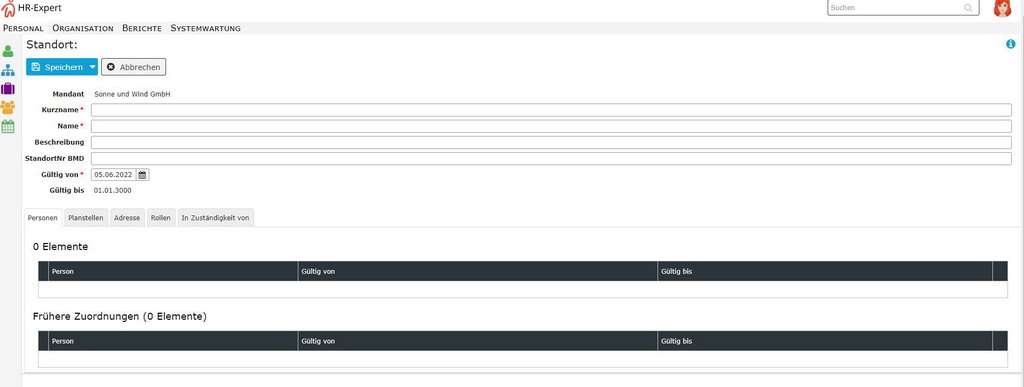
Location
The list of all created locations is displayed here, and clicking "New" lets you create new locations. A prerequisite for using locations is a corresponding organizational structure in your company.
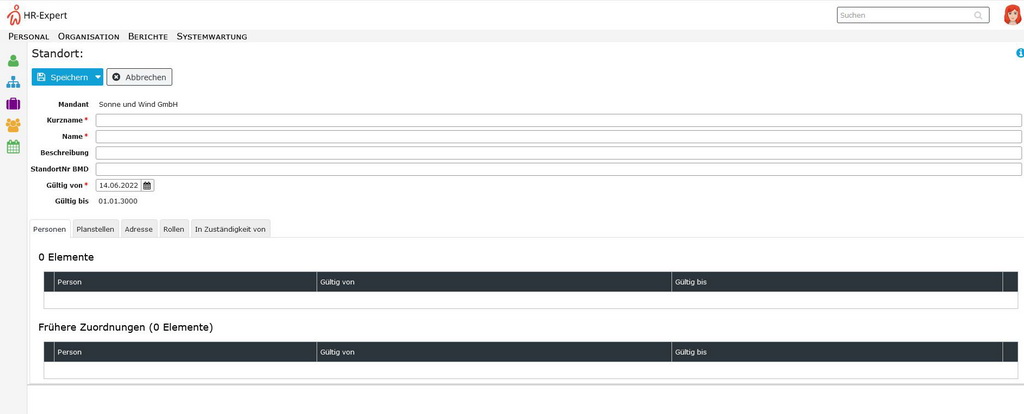
Budgeted Position
The list of all created budgeted positions is displayed here, and clicking "New" lets you create new budgeted positions.
Currently available fields for this:
- Client (mandatory field)
- Short name (mandatory field)
- Name (mandatory field)
- Description
- State
- Management position
- Open from
- Open until
- Valid from (mandatory field)
- Valid until (01.01.3000)
Tabs:
-
Position holders
-
Jobs
-
Organization
- Organizational units
- Locations
- Cost centers
-
Requirements
- Experience levels
- Qualifications
- Assignments
-
Job families
-
Position hierarchy (staffing plan hierarchy)
- Parent budgeted positions
- Subordinate budgeted positions
-
Work classifications
-
Competencies
Maintenance
Job
The list of all created jobs is displayed here, and clicking "New" lets you create new jobs.
Currently available fields for this:
- Client
- Short name (mandatory field)
- Name (mandatory field)
- Description
- Top level
- Valid from (mandatory field)
- Valid until (01.01.3000, mandatory field)
Tabs:
- Competencies
- Job families
- Qualifications
- Assignments
- Jobs
- Work classifications
- Persons
- Budgeted positions
Job Family
The list of all created jobs is displayed here, and clicking "New" lets you create new jobs.
Currently available fields for this:
- Short name (mandatory field)
- Name (mandatory field)
- Client
Tabs:
- Assignments
- Required qualifications
- Budgeted positions
- Jobs
- Competencies