Workflow
The menu items grouped in the Workflow menu bar are used to track the progress of your own requests and to process open requests, and serve as an archive for completed requests and completed tasks.

General Information on the Workflow Lists
Using the filter function

- The filter function allows searching for specific requests in the workflow lists.
- Open the desired list (e.g., open requests, open tasks or completed requests) --> click the "Show filter" button (located in the title bar).
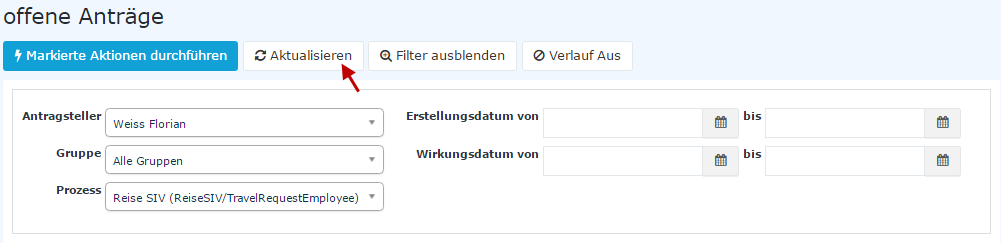
You can then search for the desired request using the following parameters (search criteria):
- Requester
here you can search specifically for a certain requester --> select the desired person (process author) from the name list; you can also select "All persons" - Group
with this parameter, a certain group can be selected (e.g., Management or Marketing); otherwise all groups are searched automatically - Process
the search for a certain process (for example, all vacation requests of a desired person --> process Vacation); if you want to see all requests, select "All process definitions" as the parameter - Creation date
the search for requests with a certain creation date (you can enter either a from - to date or, for example, only a to date to see all requests submitted up to a certain day) - Effective date
all requests whose effective period is valid from the from date are displayed; in addition, the effective date can be restricted with the parameter to date - Available action (only in the "Open tasks" list)
shows only those tasks for which the selected action (e.g., Approve or Review) is possible - Processor (only in the task lists and only for users with viewing authorization for other persons)
here you can search for the tasks of a certain person - Show completed tasks of deputies (only in the "Completed tasks" list)
if this option is checked, tasks completed by deputies are also displayed
Clicking the "Apply filter" button searches the requests according to the parameters and displays them. If a filter is active, it can be reset with the "Clear filter" button. "Refresh" reloads the list.
If you do not want the filter criteria on the screen, click the "Hide filter" button.
If the column with the process history should not be displayed in the request overview, click the "History off" button. If you want to see the column, select "History on".
Processing several requests at once
In the "Open tasks" and "Open requests" lists, several entries can be processed at the same time: The desired action (e.g., Approve, Reject, Review or Delete) is marked for the individual entries using the checkbox in front of the action, or via the "Select" button for all matching entries at once (approval, review, rejection, deletion or "Undo selection"). Then, with "Perform marked actions", all marked actions are executed.
History View
Once you have found the desired request using the filter parameters (search criteria), you can take a closer look at it using the info button (Details column):
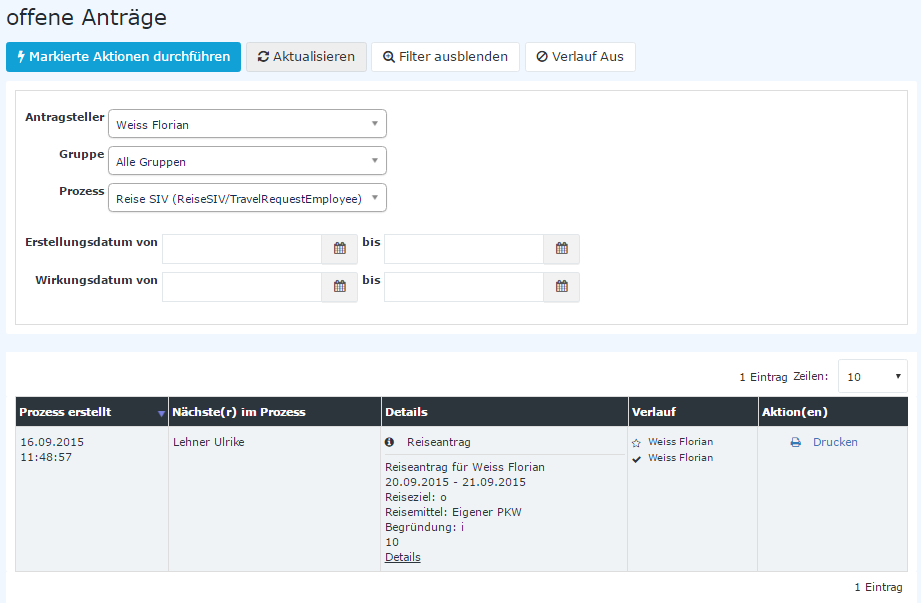
Clicking the info button displays the following information:
- Overview
general information about the request such as requester, process, creation and completion time, and status - Form
here you find all data from the request form summarized (from-to date, absence reason, comment, etc.)
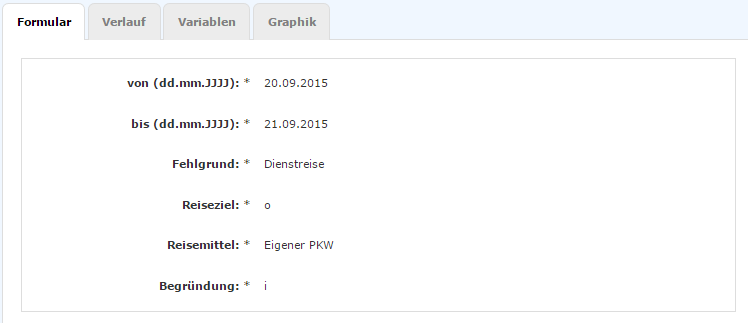
- History
here you see the role (requester, supervisor), to which person these roles are assigned (assigned to), who processed the request (processor), and the time of processing. If comments had been added to the request, you would see them here as well.
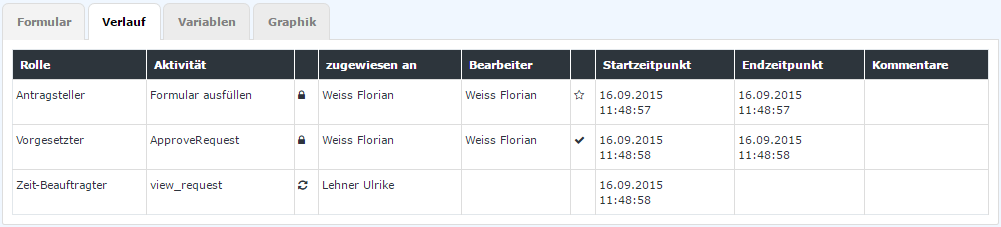
- Optional - Variables
these are all system data and variables relevant to the request:
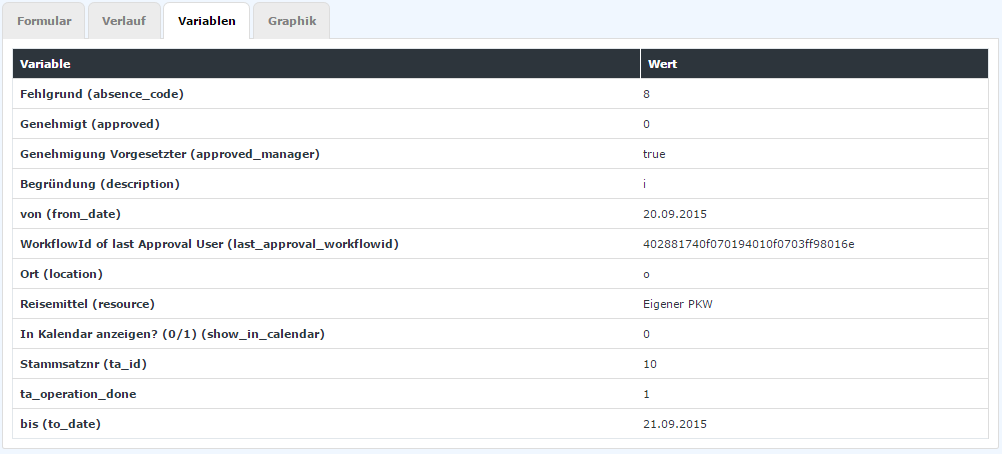
- Optional - Graphic
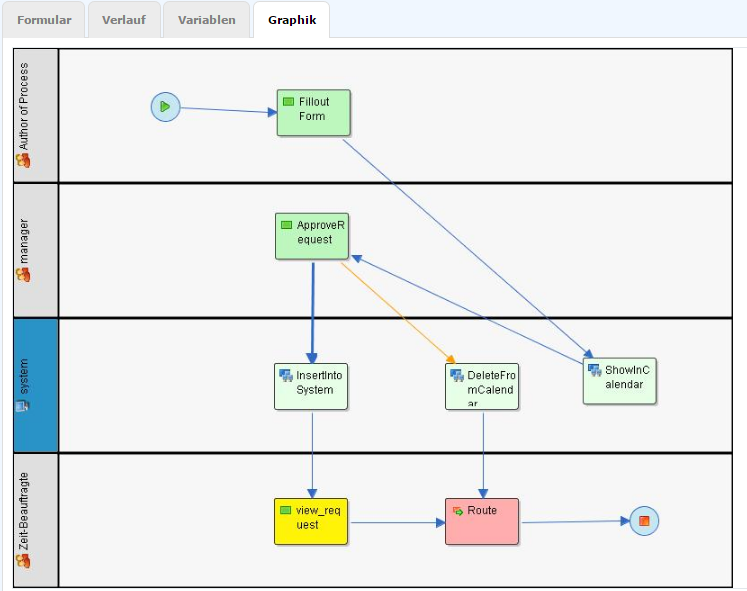
here the process flow is displayed graphically: