Evaluating Project Times (User)
In Webdesk EWP, project times can be clearly evaluated and compared by various criteria such as time, project, customer or billability. The results can also be integrated into various reports and converted into the formats PDF and Microsoft Excel.
Obtaining Evaluations
The following instructions for evaluating project times are based on an example configuration. Depending on your own configuration, the view and the availability of options may differ.
To obtain evaluations, select your configuration of the action "ptm_getOrgProjectEfforts" in the menu tree (the name is chosen by you, e.g., "Project effort reports", "My project times" or "Project reports"). A mask with various options for filtering the evaluation appears:
| From | Date (period) from which project efforts are to be included in the evaluation |
|---|---|
| To | Date (period) up to which project efforts are to be included in the evaluation |
| Structure | Selection of the project structure whose project efforts are to be evaluated. If nothing is selected here, all structures are included |
| Project | Selection of the project whose efforts are to be evaluated. If nothing is selected here, all projects are included. |
| Customer | Selection of a customer whose project time efforts are to be included in the evaluation. If nothing is selected here, there is no filtering by customer. |
| View variant | Selection of the report variant (how/which data is to be displayed?) |
| Description | More detailed description of the selected view variant |
| Select billability | Selection of whether only billable, only non-billable or all project times are to be included |
| With subprojects | Selection Yes/No of whether subprojects are to be displayed broken down separately |
| Show project hierarchy | Selection of whether evaluated project times are to be displayed hierarchically in the context of the project structures |
| Show individual bookings | Selection Yes/No of whether each individual booking of project time is displayed separately as a row or not |
| With historization | Selection Yes/No of whether historical project time efforts (e.g., after a group change) are also included in the evaluation.Example: The employee Rudi Renner changed from the department (group) "Development" to the group "Sales" in June of last year. If "Yes" is selected for historization, the annual evaluation shows Rudi's production efforts from the group "Development" (Jan.-Jun.) and from the group "Sales" (Jun.-Dec.). If "No" is selected, only the project time efforts from the employee's current group (in Rudi's case "Sales") are evaluated. |
| Alternative report title | Option to select an alternative title to be displayed in the report (and in the export views) instead of the action name |
| Output format | Selection of the output format: print view, PDF or Microsoft Excel; if this field is left empty, the output is shown on screen |
| Selection tree | Selection of the groups whose project times are included in the evaluation:* Groups with viewing authorization: shows project times of all groups that the user is authorized to view |
- All groups: shows project times of all groups of the client, even if the user has no viewing authorization | | Search | Here the project time evaluation can be filtered once more by specific persons or groups. The entered word must match at least part of the first or last name of a person or the short name/name of a group. | | Consider selection in search | Checkbox Yes/No: Should the filter criteria entered above (structure, project, customer, etc...) also apply when searching for persons or groups? |
View Variants
Basically, two view variants are preconfigured in the standard action for project time evaluation, which are sufficient for the usual overviews and areas of application:
- Sorted by booking element
alphabetical sorting of the booked projects with the project as the top level (hierarchy: Project > Year > Month > Group > Employee)
- Sorted by date
The project time efforts are displayed in a time series with the year as the top level (hierarchy: Year > Month > Week > Date > Group > Employee
Tree/Favorites Selection of Groups
Here you have the option to select the groups that are to be included in the project time evaluation directly from the organization chart by clicking. You can also define individual favorites as a filter template.
-
Organization chart
- All folders marked with a plus (+) symbol can be expanded further and thus show the subunits.
- Clicking checks the respective unit. A double-click automatically checks all subunits as well
- clicking the green arrow > Show subgroups down to depth (depth 1-3)> displays all existing subgroups
- with the blue arrow > Collapse tree > this view is collapsed again, only the higher-level groups appear
- Show details > clicking the icon
 displays the selected groups clearly in a list to the right of the icon. Clicking again hides the detail information.
 - Clicking the Query button starts the search.
- Favorites
Once you have switched to the Favorites view (see screenshot), clicking "Add" lets you create both groups and persons as a quick selection for filtering the evaluation. If you now check the checkbox for groups and/or persons and click the Query button, these saved filter criteria are applied in the evaluation.
Viewing Evaluations
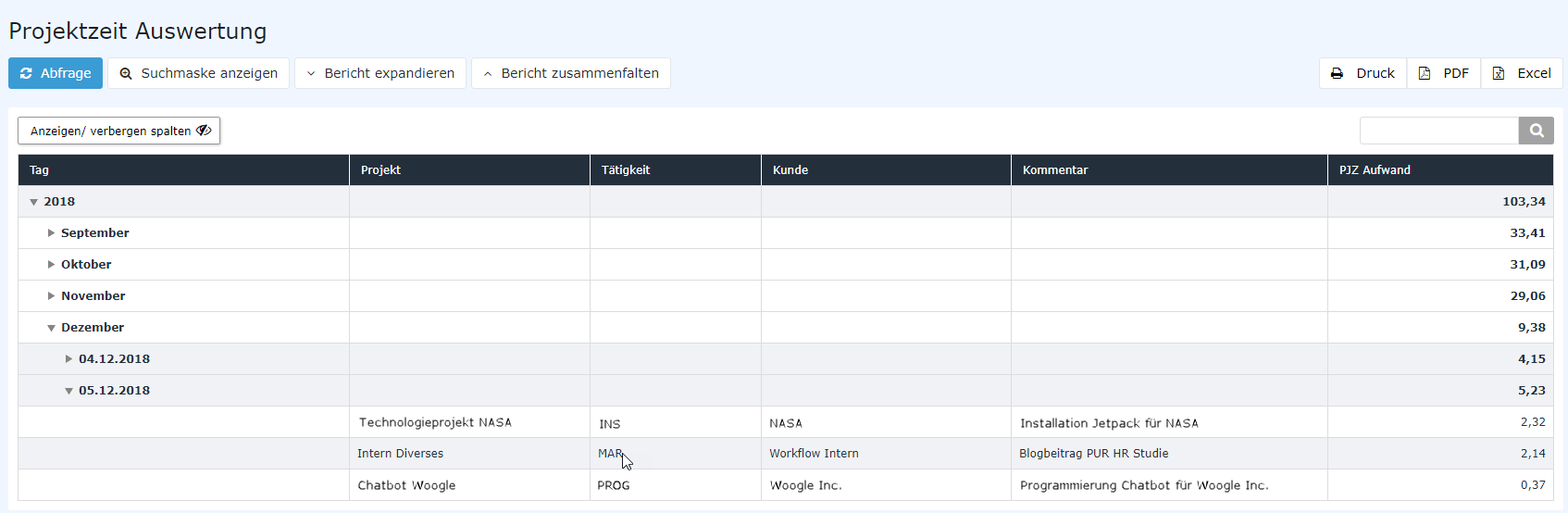
If you have chosen the screen view of the evaluation (nothing was selected in the "Output format" field), the evaluation is displayed as a collapse element. Depending on the selected view variant , the data is structured differently (e.g., primarily by date, by project, by person).
- using the small arrows , entries can be individually expanded and collapsed
- the "Expand report" button expands the entire report including all sub-elements
- via "Collapse report" it is reduced again to the highest-ranking level(s)
- with the "Show/hide columns" button, individual information columns in the table can be shown or hidden
Using the export buttons (Print, PDF, Excel) at the top left, the report can also be exported afterwards to other formats.
The following screenshot shows an example of a project time evaluation in the chronological view variant as a time series.