Management
The lists and filters displayed in this menu bar are merely possible examples. The desired filters and lists can be configured individually. Examples of further possible filters: negative hours, sick leave filter, various balance filters, etc.
- Account overview
- Booking list
- Filters
- Statistics
- and the like
The target group for these actions is management, the HR department and supervisors or their deputies.
The selection of organizational units for displaying the desired list or evaluation is made in all menu items via the organization chart or the favorites list.
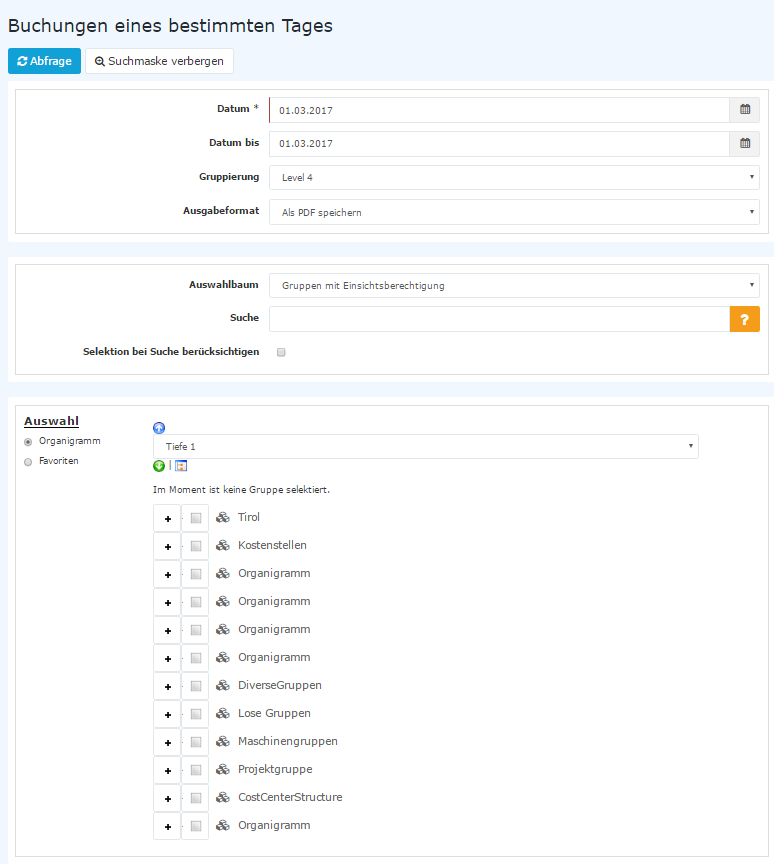
-
Date
Query of the desired list for the desired date; some lists are queried with a key date, others with a period from-to -
Grouping
no grouping, 1st level, 2nd level, 3rd level, etc.; how many levels are available depends on the depth of the organizational structure -
Selection tree
- Authorized groups and paths: the organization chart below shows only those groups for which you have viewing authorization, as well as the higher-level groups leading to these groups
- with Full hierarchy context, all groups are displayed in the organization chart, but you can only select those for which you have viewing authorization
-
Search
Search for a person (first and/or last name) or for a group (short name or name); it is sufficient to enter part of the name (e.g., we), a wildcard such as * is not necessary. Several search terms can be entered separated by commas. -
Output format
The output format selected here (PDF, Excel, print version) is displayed in a new window directly, without the HTML list being retrieved beforehand (=time saving). If no selection is made (=empty), the HTML list is displayed as usual -
Consider selection in search
This parameter only has an effect if a person is entered in the "Search" field. If this parameter is activated, persons are only searched for in the groups selected in the organization chart; otherwise all groups for which you are authorized are searched. -
Show result immediately
This field is only displayed if it is enabled in the configuration of the evaluation. If it is activated, the result is displayed immediately with the saved selection the next time the menu item is opened. -
Selection
This determines whether the selection is made via the organization chart or via the favorites. -
Organization chart
By checking a department (e.g., Marketing SMA), the list or evaluation is displayed for all employees of this department.- All folders that contain subunits can be expanded further and thus show the subunits.
- Clicking checks the respective unit. The small button next to a group with subgroups opens a menu: with Select all, all subunits are checked as well (provided viewing authorization exists for subgroups), with Deselect all the selection for the group including its subunits is removed again.
- By selecting a depth and clicking the button - Show subgroups down to depth - the subgroups down to the selected depth (or all) are displayed.
- With the button - Collapse tree - this view is collapsed again and only the higher-level groups appear.
- Show details: clicking the icon displays detail information, e.g., department names or similar. Clicking the icon again hides the detail information.
- Clicking the Query button starts the search.
-
Favorites
With this parameter, every user can create his or her own favorites list, which contains the persons you need most frequently.
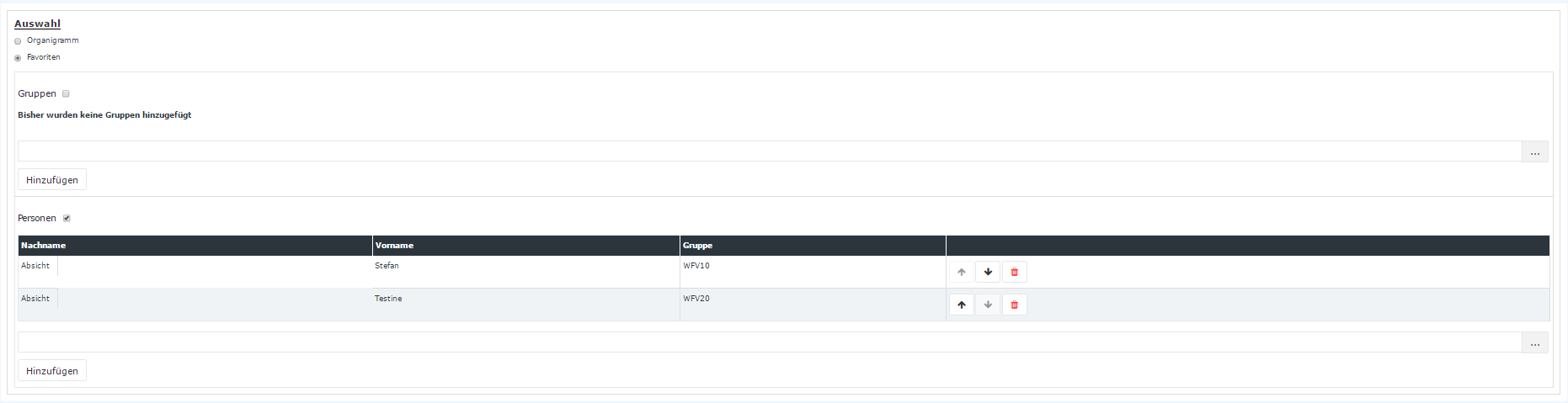
-
- Add favorite
- to add a person to the list --> select the person --> click the Add button
- Change the order of favorites
- the order of the persons on the favorites list can be changed at any time using the arrow keys. In the output of the management list, the names of the selected users appear in the entered order.
- Remove favorites from the list
- to remove a person from the favorites list, click the red delete icon
- Add favorite
The selection criteria in the selection tree (organizational structure) are saved and automatically restored the next time it is opened.
-
Favorites selection with groups
as of version 3.3, groups can also be added as favorites; the query is made for persons AND/OR groups
It is important here to check the "Persons" and/or "Groups" query. Afterwards the person names or groups can be selected and added.